Get to Know the Nexts Workspace
Learn what the chat, projects, tasks, plugins, docs, and account areas each do.
The main areas of the workspace
Activity bar
The activity bar switches between chat, history, scheduled tasks, plugins, help docs, and settings. The avatar or Nexts logo at the top is your account entry point.
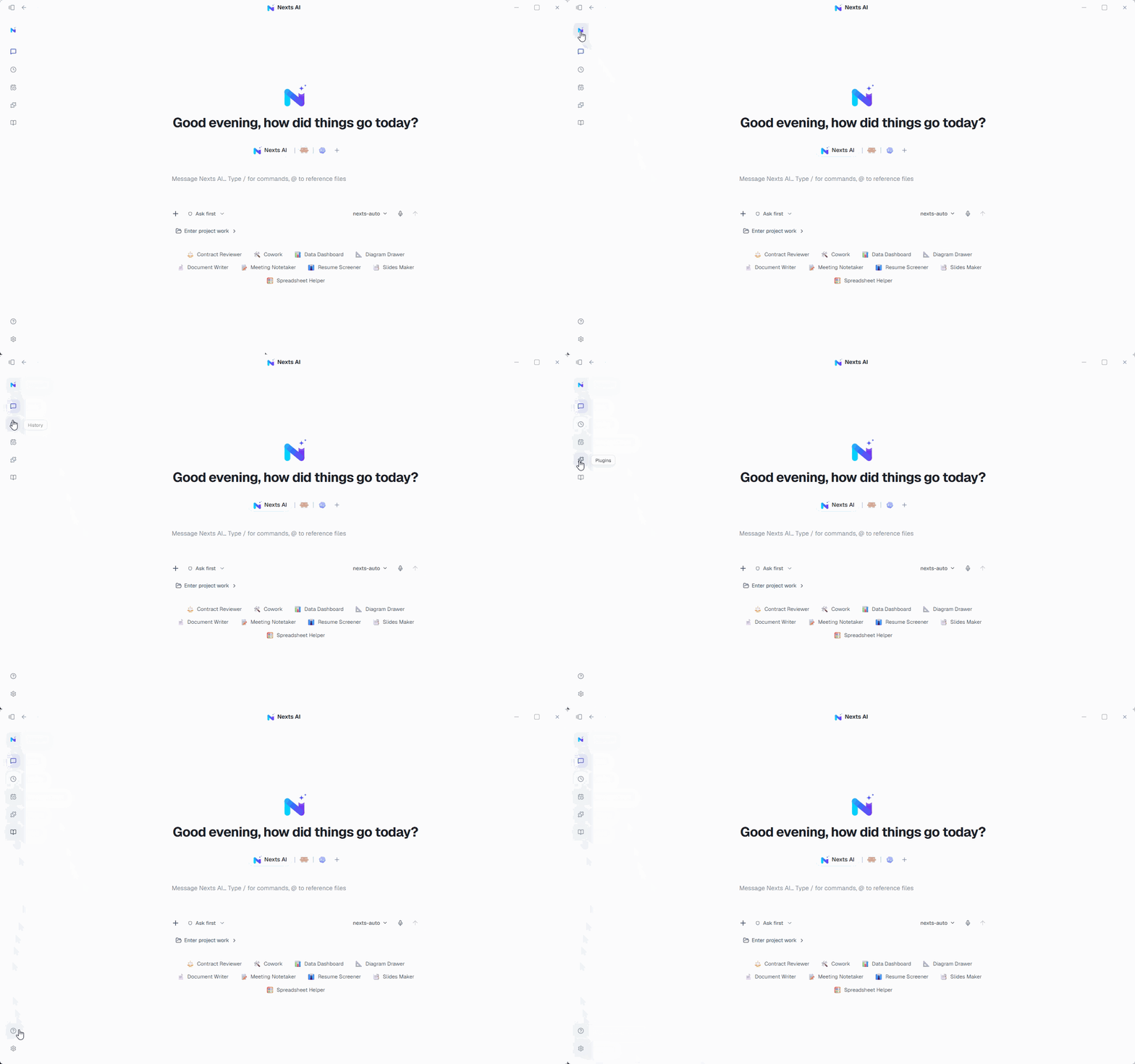
Sidebar
In the chat view, the sidebar shows your projects and recent conversations. Selecting a conversation loads its messages in the main area; starting a new conversation does not copy the whole project.
Main workspace
The main workspace shows the welcome page, chat content, the tasks page, the plugins page, or settings. Use the welcome page to start something new, and a conversation page to continue existing work.
Input box
The input box is for more than text. You can add attachments, paste images or long text, reference project files with @, choose a model, and adjust the permission mode.
How to work effectively
- Start by saying clearly what result you want.
- Link a project folder for long-running work; just start typing for quick questions.
- Add files, models, or connected apps only when the task needs them.
- Review authorization prompts before write, send, or delete operations run.
- Split different topics into multiple lightweight conversations within the same project.